Facebook Ads Integration with PostTrack (via Facebook Developer)
This guide will help you connect Facebook (Meta) ad accounts to PostTrack. Insert your screenshots in the marked places — file names are provided as hints.
Table of Contents
- What You'll Need
- Step 1. Create an app in Meta for Developers
- Step 2. Link app to business
- Step 3. Get token
- Step 4. Grant access to ad accounts
- Step 5. Add integration in PostTrack
- Step 6. Import and verify accounts
- Verifying functionality
- Common errors and solutions
- Security notes
- FAQ
- Glossary
What You'll Need
- Access to Meta for Developers (developers.facebook.com).
- Business Manager (Business Settings) with your ad accounts.
- App ID and App Secret of the future app.
- System User token with
ads_readpermissions (andread_insightsif needed).
Step 1. Create an App in Meta for Developers
-
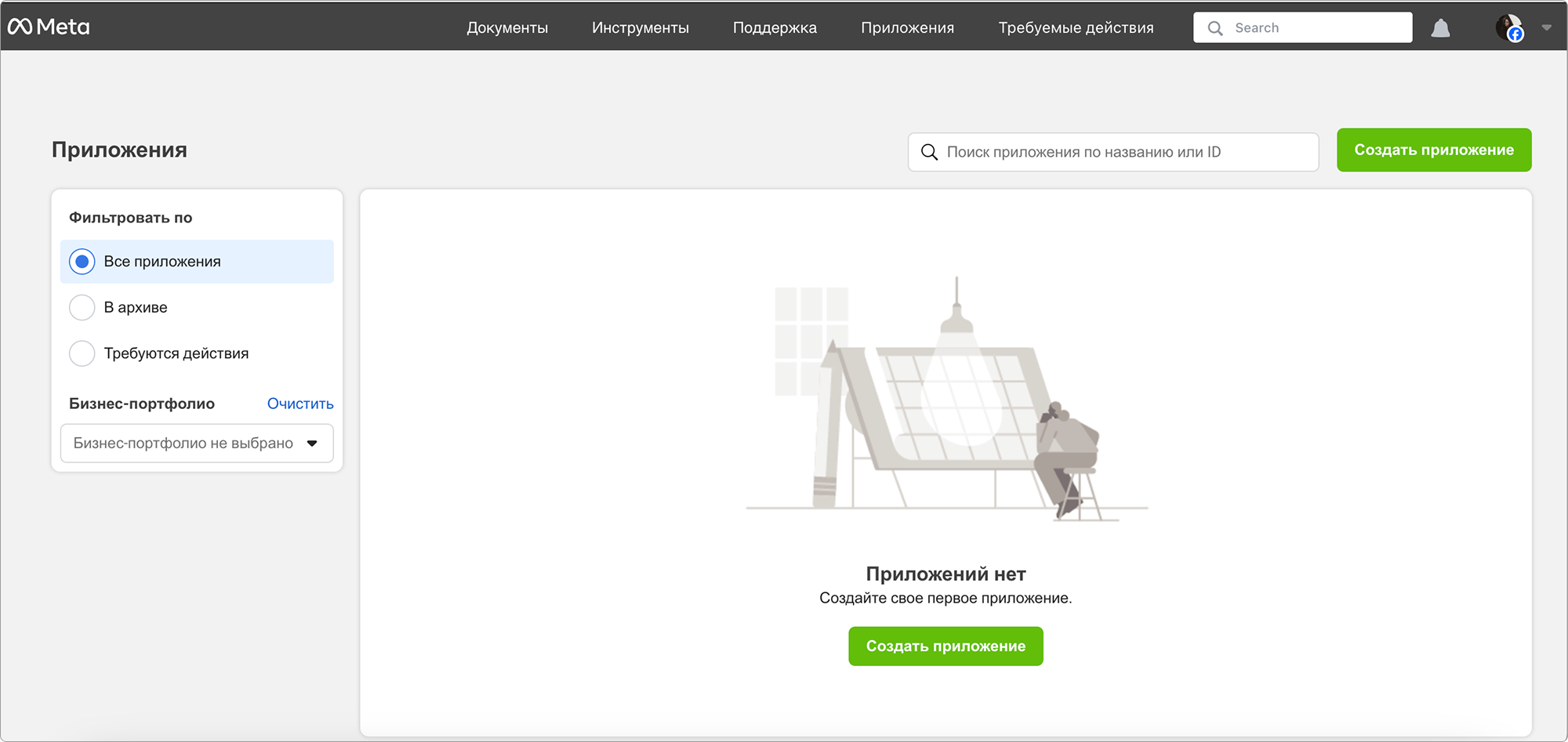
Go to developers.facebook.com → My Apps → Create App.
-
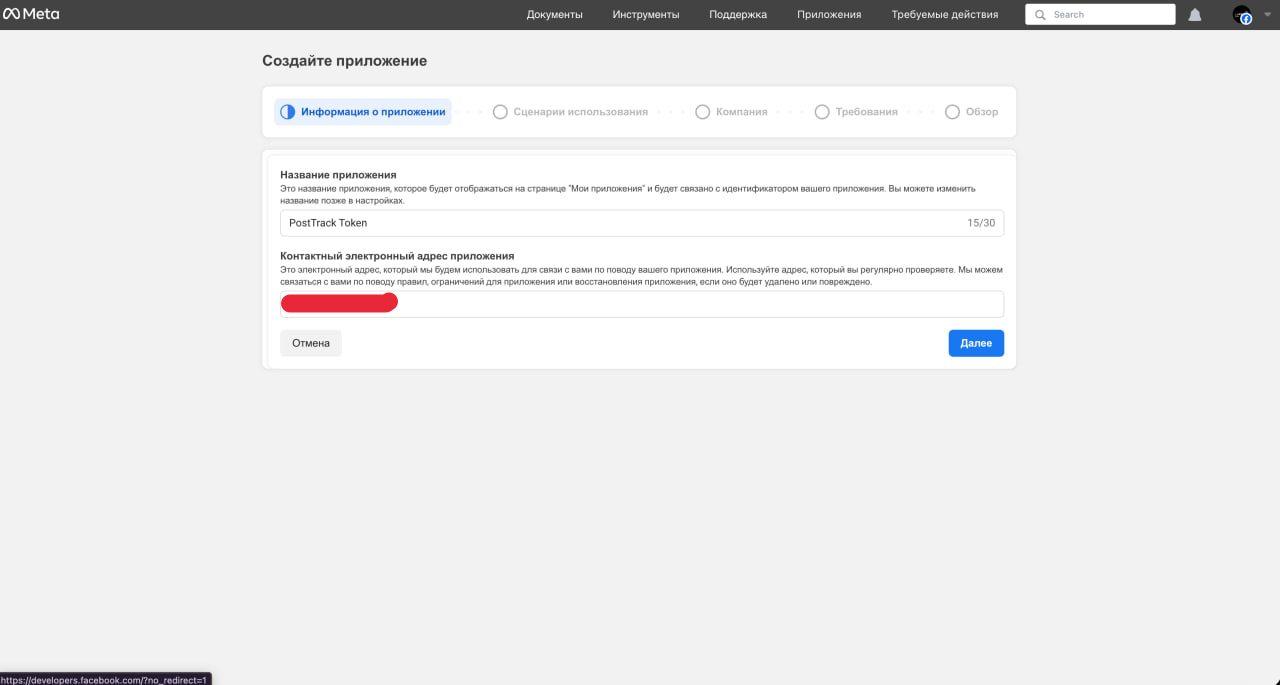
In the next window, enter the app name and click Next
-
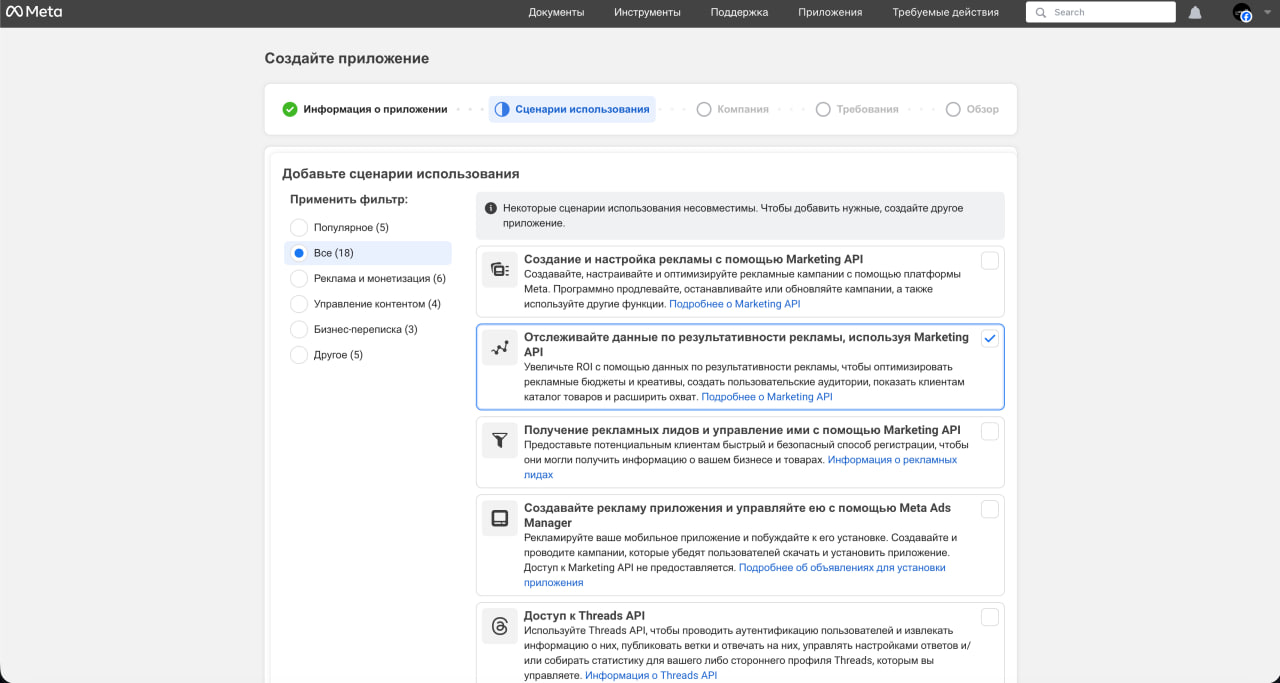
Select "Track ad performance data using the Marketing API" and click Next
-
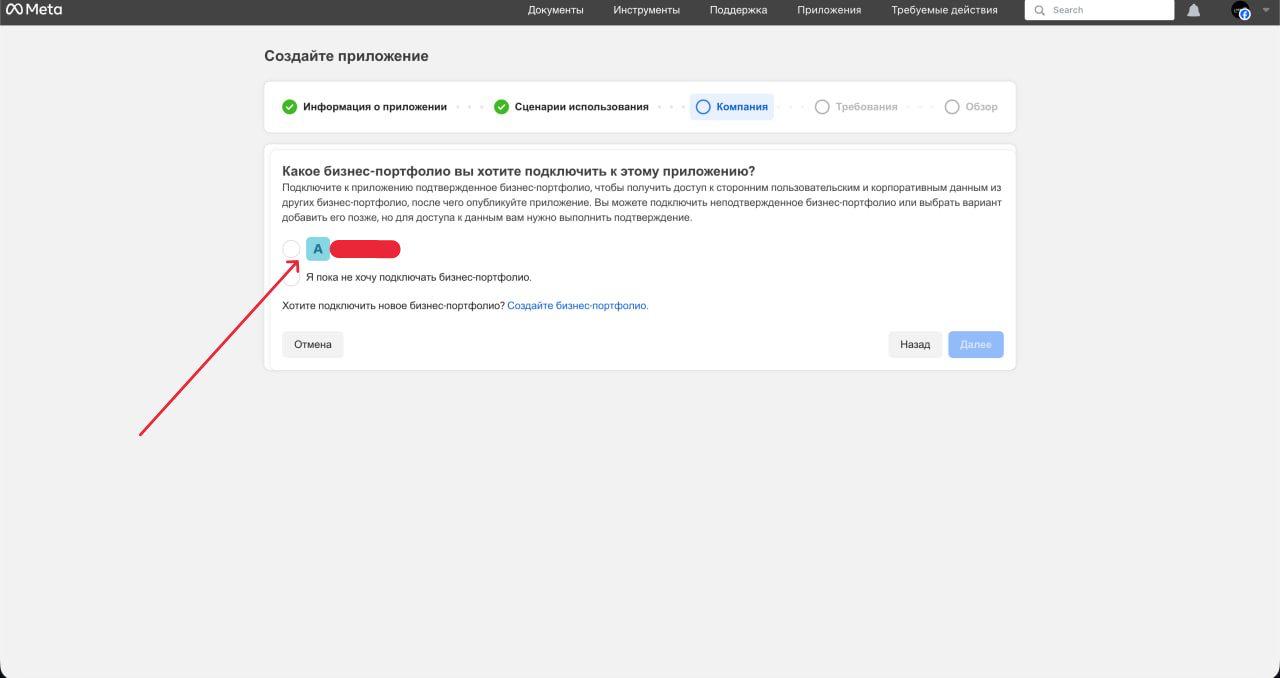
Select "Business" and click Next
-
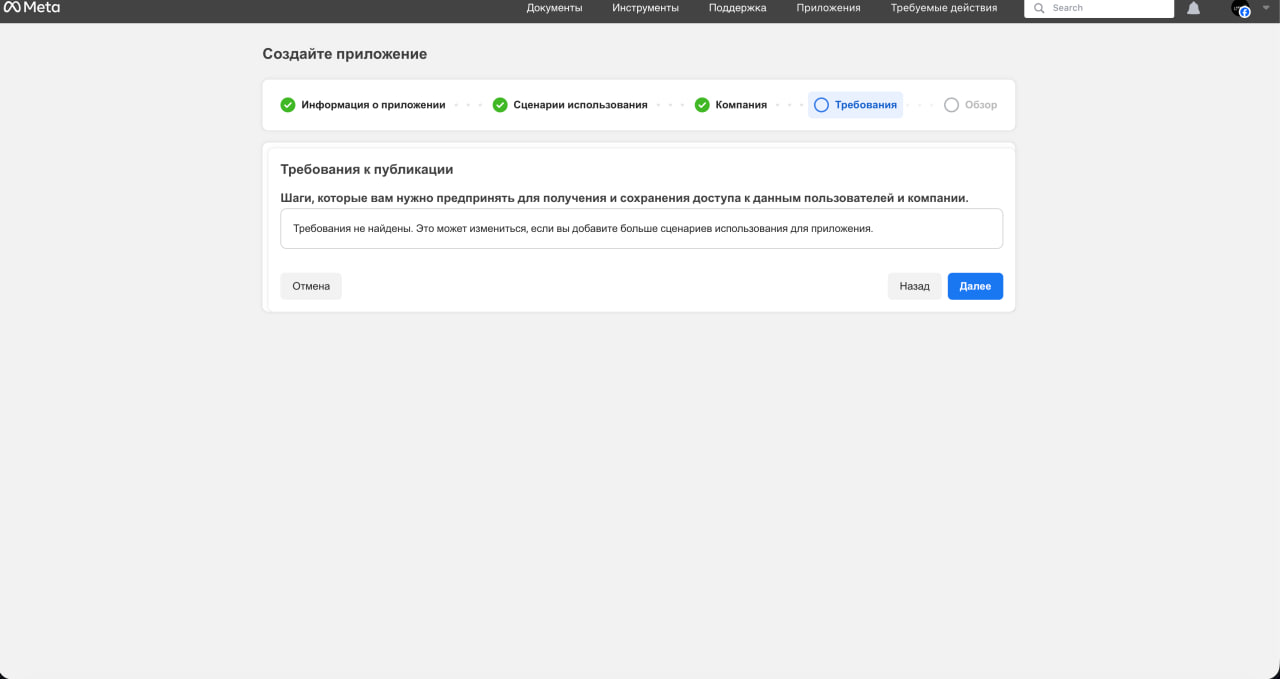
On the requirements page, simply click Next
-
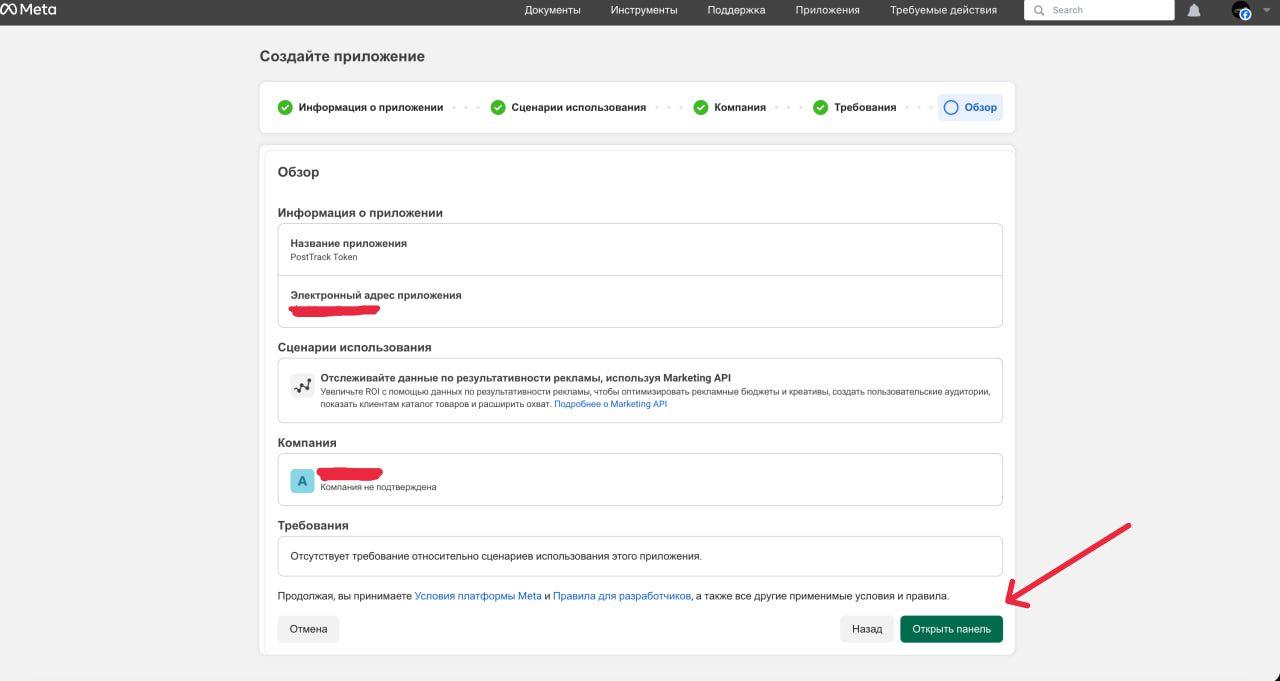
Click the create app button
Step 2. Getting Data
-
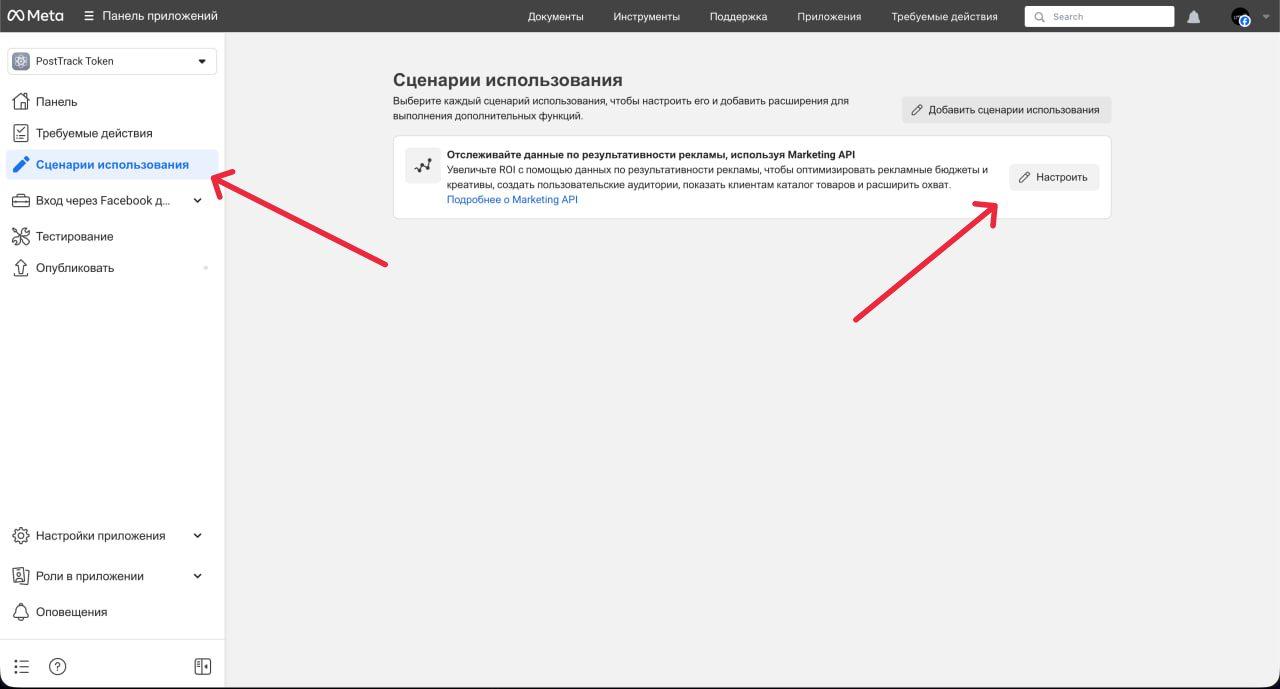
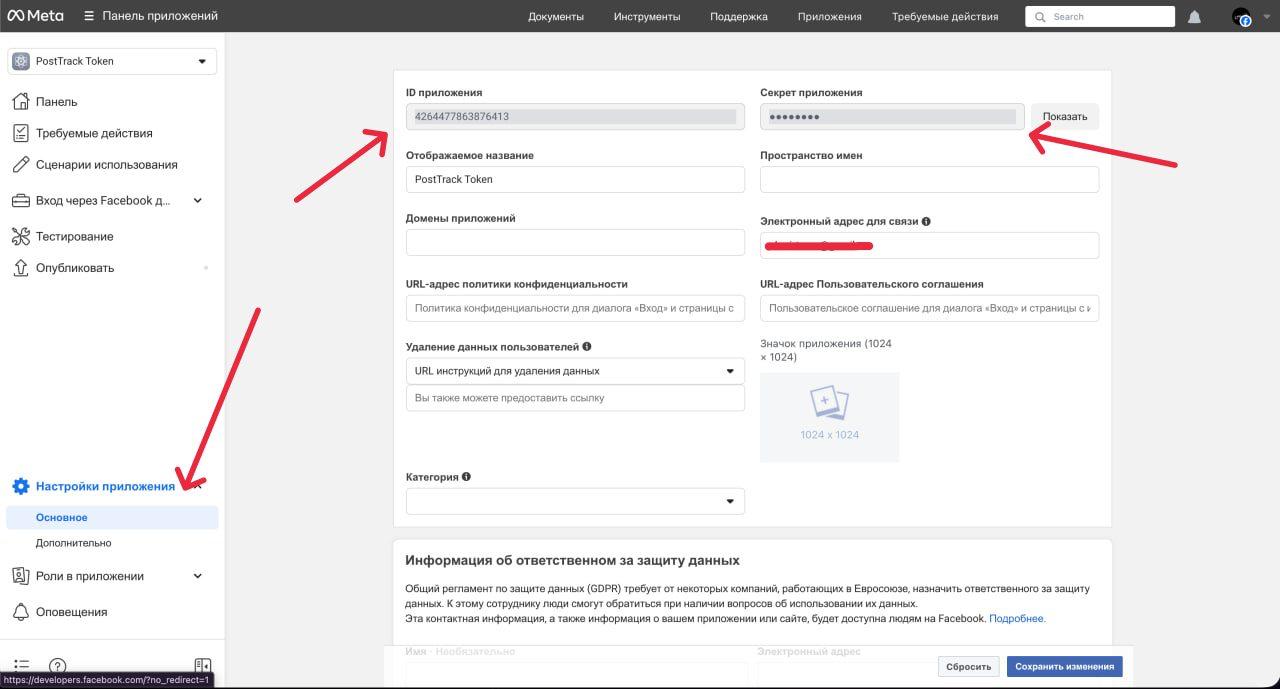
Go to the app dashboard and navigate to "Settings"
-
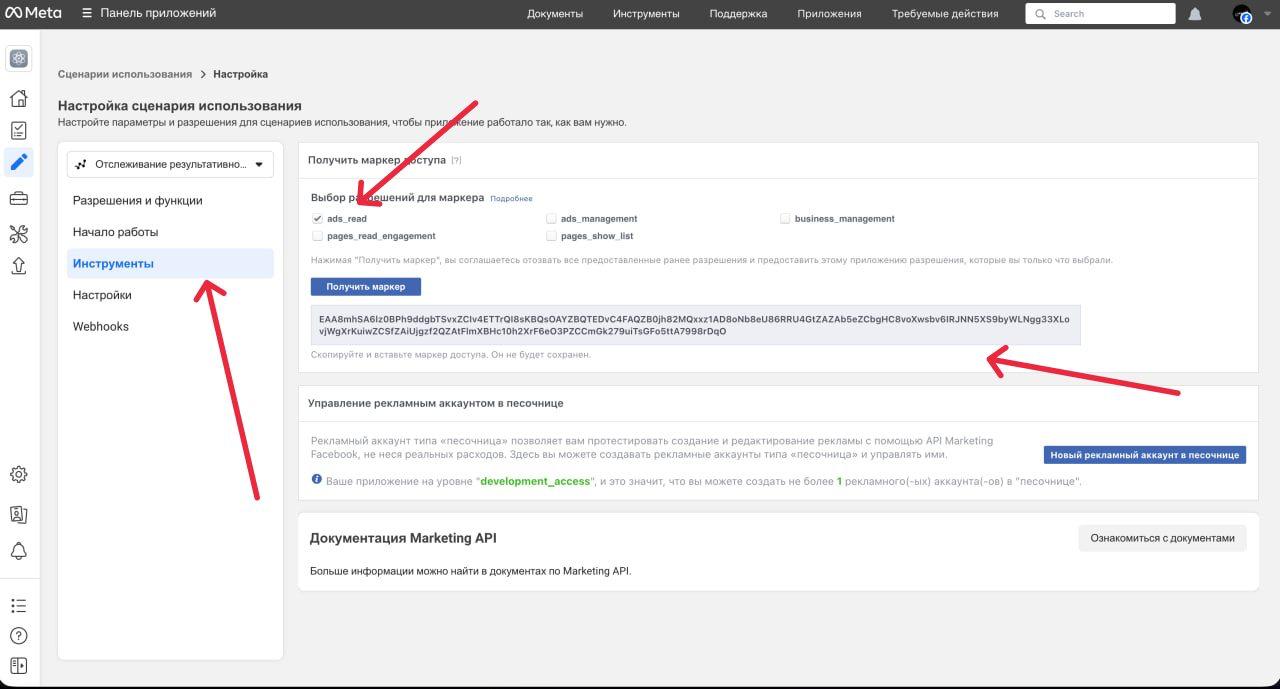
Getting EAA token: go to "Tools" section, enable ads_read and generate access token, save it
-
Getting APP ID and APP Secret: go to "App Settings" => "Basic", get the data and save
Step 3. Adding Data to PostTrack
-
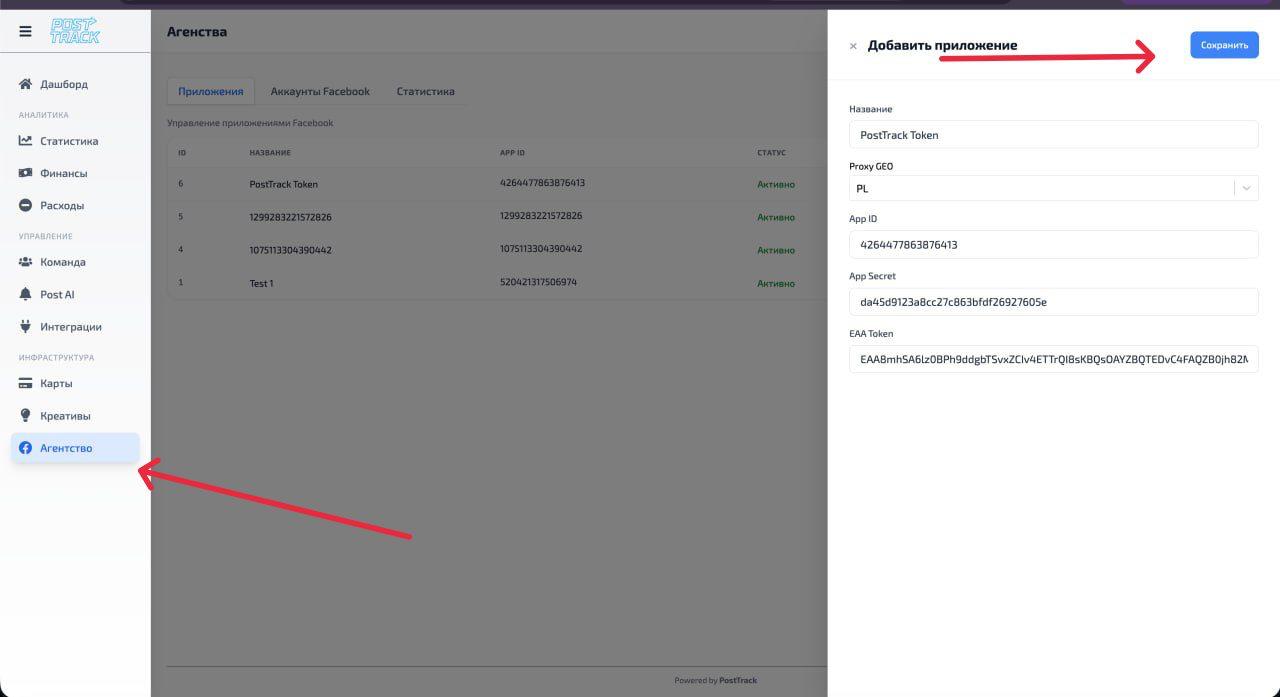
Go to Agencies section
-
Click add button and add app data
-
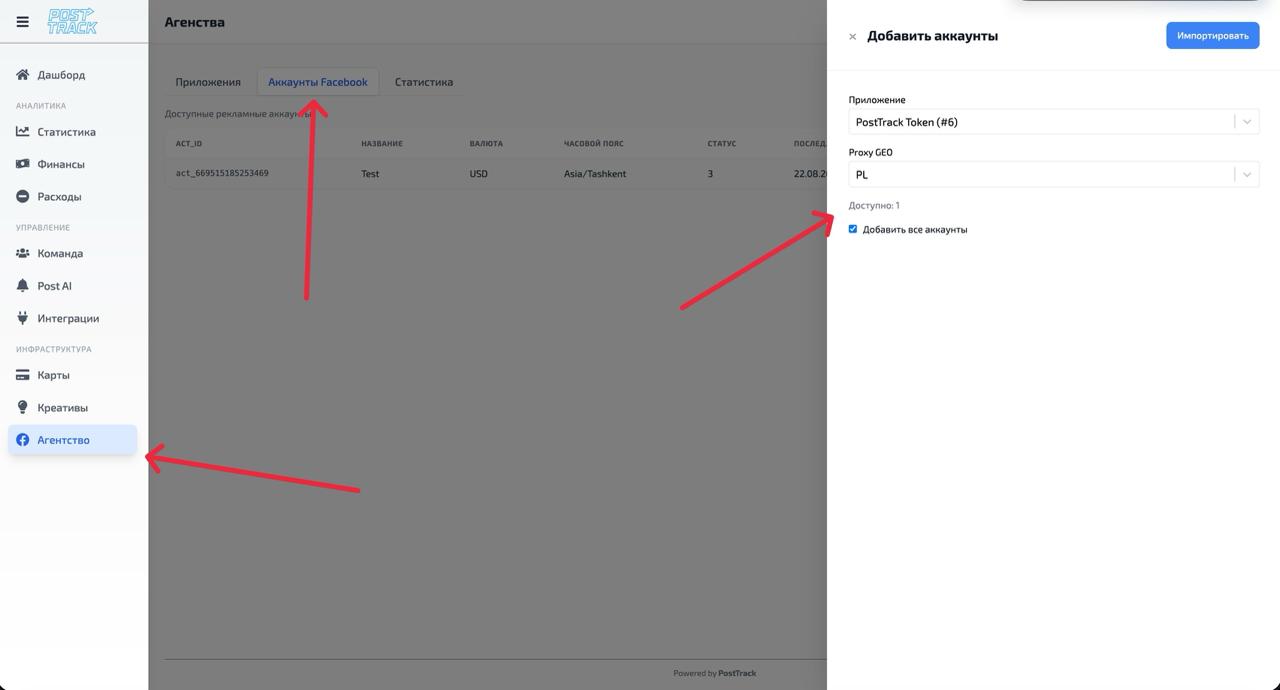
Import accounts: go to "Facebook Accounts" section, import needed Facebook accounts or add all
Verifying Functionality
- Go to Statistics tab.
- Select a period (default — last 7 days) and click Show.
- If needed, click Synchronize — the service will pull fresh Insights and update the table.
Common Errors and Solutions
| Symptom | Possible Cause | What to Do |
|---|---|---|
| Empty list on import | System User has no access to Ad Account | Grant access in Business Settings → Ad Accounts → Assign |
| 401/403 on requests | Token expired/invalid, missing permissions | Generate new token with ads_read and read_insights if needed |
| No data in report | No traffic for selected period or account not imported | Check period and import; run Synchronization |
| App validation error | App ID/Secret don't match token | Verify App + System User Token pairing |
| Different currencies | Different accounts in different currencies | Group by accounts and analyze separately |
Security Notes
- Don't share App Secret and Access Token in public channels.
- Restrict PostTrack access to trusted users only.
- Regularly revoke old System User tokens and generate new ones.
- Log integration actions and set up error alerts.
FAQ
Are ads_management permissions needed?
No, ads_read (and read_insights if needed) is sufficient.
Can I connect multiple apps? Yes. Add each app separately and import its accounts.
What if I only have ID without act_?
Both formats are supported — act_123 or 123.
How long does synchronization take? Depends on number of accounts and period — typically from seconds to a few minutes.
Glossary
- App ID / App Secret — identifiers of your app in Meta for Developers.
- System User Token — service token on behalf of business system user.
- Business Manager — company (business) admin panel in Meta.
- ads_read / read_insights — permissions for accessing Ads/Insights data.
- act_XXXXXXXXXXXX — ad account identifier.